WPT HOME: how to create and join a private game with friends

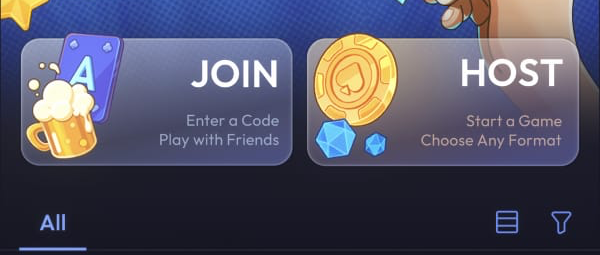
To play with friends, one person creates a private game with HOST and shares its Game Number. Everyone else enters that number through JOIN.
1. Access WPT HOME
Open WPT HOME in a browser on a computer or mobile device, or use the Android or iOS app. On the access screen, choose guest access, registration, account sign-in, or Google sign-in. Guest access lets you start without registering.
If you plan to keep using the same profile, open Me > Account after signing in. Options marked Linked are already connected; those marked Not Linked are available to link. Linking at least one method helps preserve access to the account. You can do this before or after learning the room flow; it is not a step required to create a game.
2. Create a private game with HOST
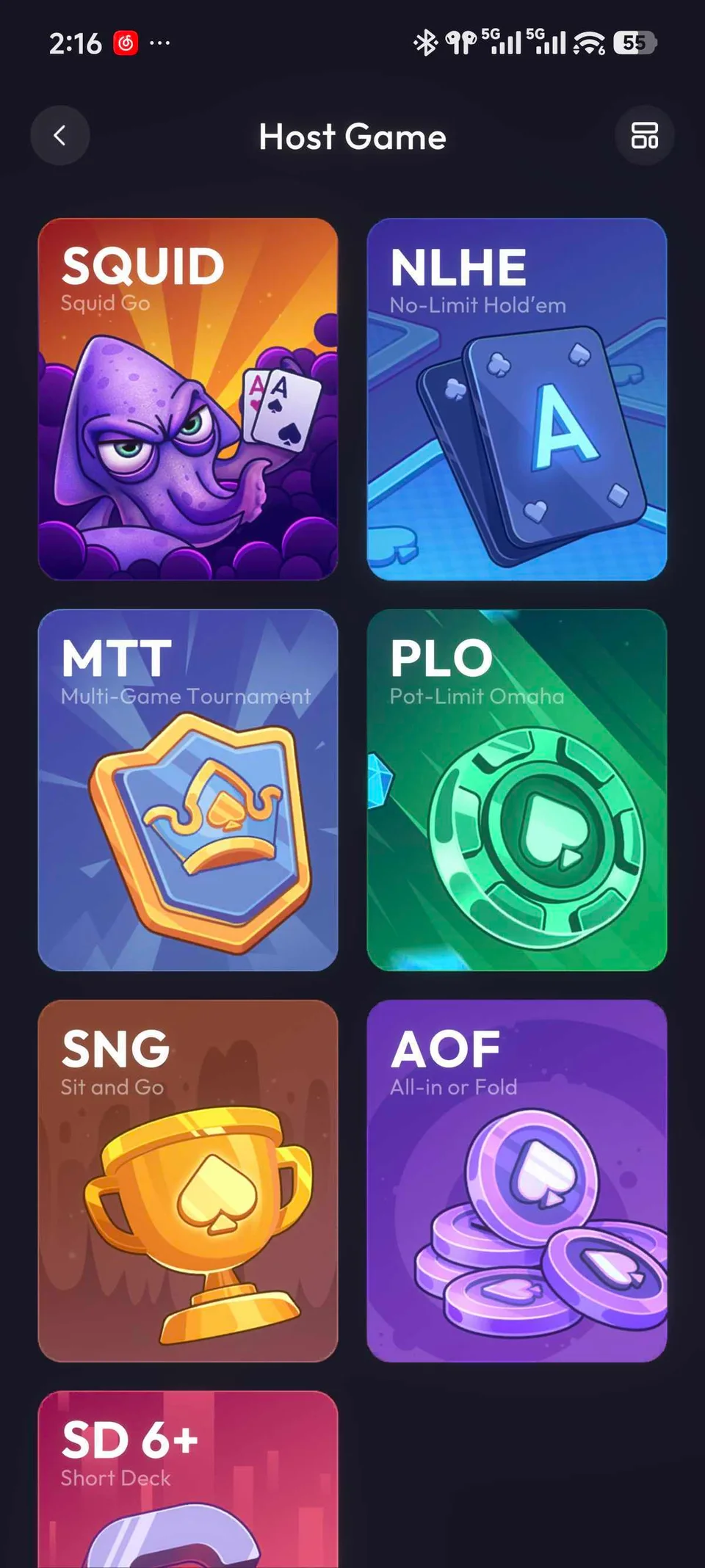
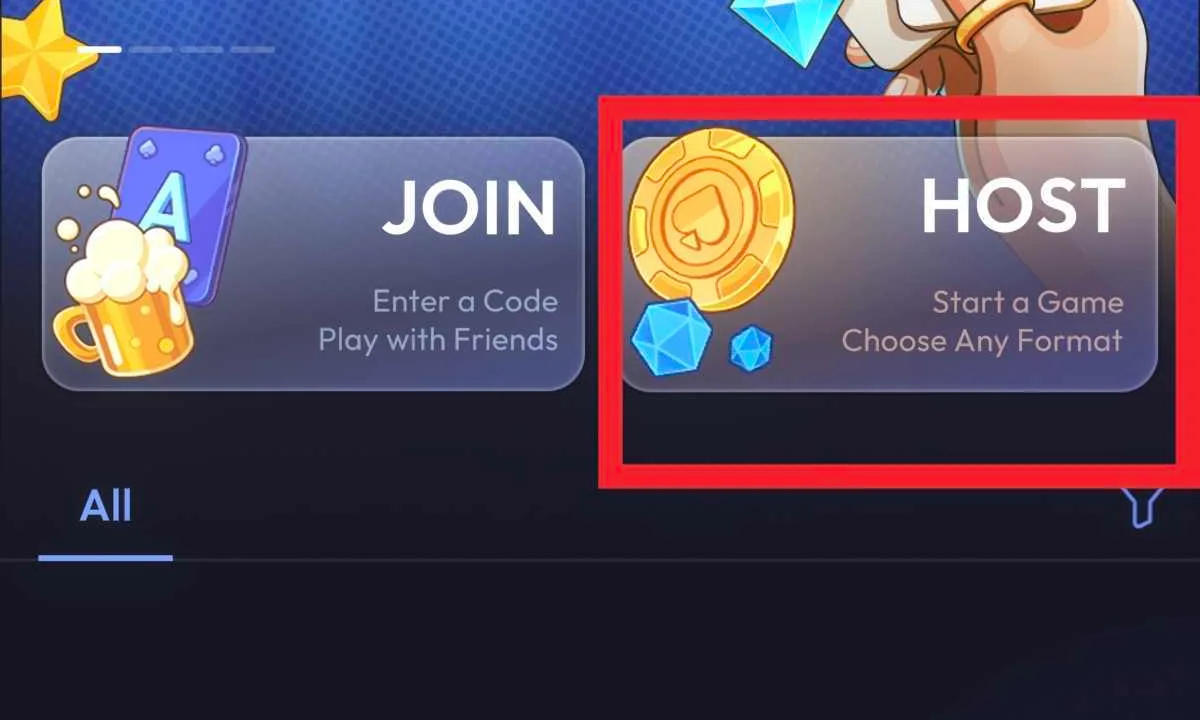
On the home screen, select HOST, choose a game mode, then continue to the game-rules screen. Set the available options and complete the private-room or password-protected-table creation. Choosing a mode starts the process; the room is ready only after you finish its configuration.
3. Invite friends with the room number
Once the room is created, copy or read its Game Number and share it with the friends you want to invite. If the room has a password, share it with the invited players as well.
4. Join a friend's room with JOIN
Each invited player opens WPT HOME, selects JOIN on the home screen, enters the received number in Game Number, and confirms entry. JOIN opens an existing room; it does not create one. The flow is complete when the host has created the room and the invited players can enter it with that number.
 3 days ago