How to Join a Room in the WPTHOME APP
By the Editorial Team
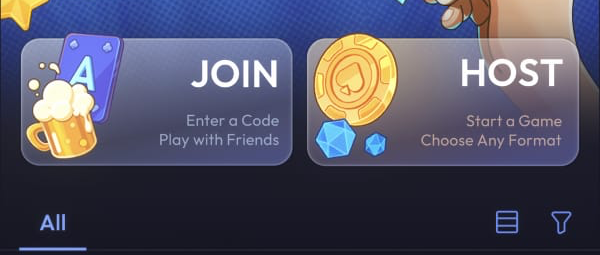
To join a room in the WPTHOME APP, you can open an invitation link sent by a friend or enter the room code. The product instructions describe these two ways to join a game after the room has been created.
Why this matters: the invitation format determines which instructions to follow. A link is an address you open; a code is information you enter in the app. The walkthrough below shows where to find the code entry option in the interface shown.
Summary
The person who created the room can share two types of invitations:
- Invitation link: the address you open to join the game.
- Room code: the number received from your friend to enter in the JOIN section.
How to Join a Room in the WPTHOME APP: Quick Explanation
The room creator sends the invitation. After creating the room, the creator can use the share button in the upper-right corner to send friends an invitation link or the room number.
Using the invitation link. Open the link your friend shared to join the game. This guide illustrates joining with a code; the link flow is not shown in the screenshots.
Using the room code. With the number you received, follow the steps corresponding to the interface shown:
1. Find JOIN on the homepage. The card displays “Enter a Code / Play with Friends.” Do not confuse this option with HOST, which appears next to it. 2. Tap JOIN to open the code entry panel. The screen displayed over the homepage is titled “Enter the Code to Join the Game.” This text helps you identify the correct panel. 3. Enter the code you received in the six input fields. The image shows these fields empty and the numeric keypad open. Use the room number shared by your friend.
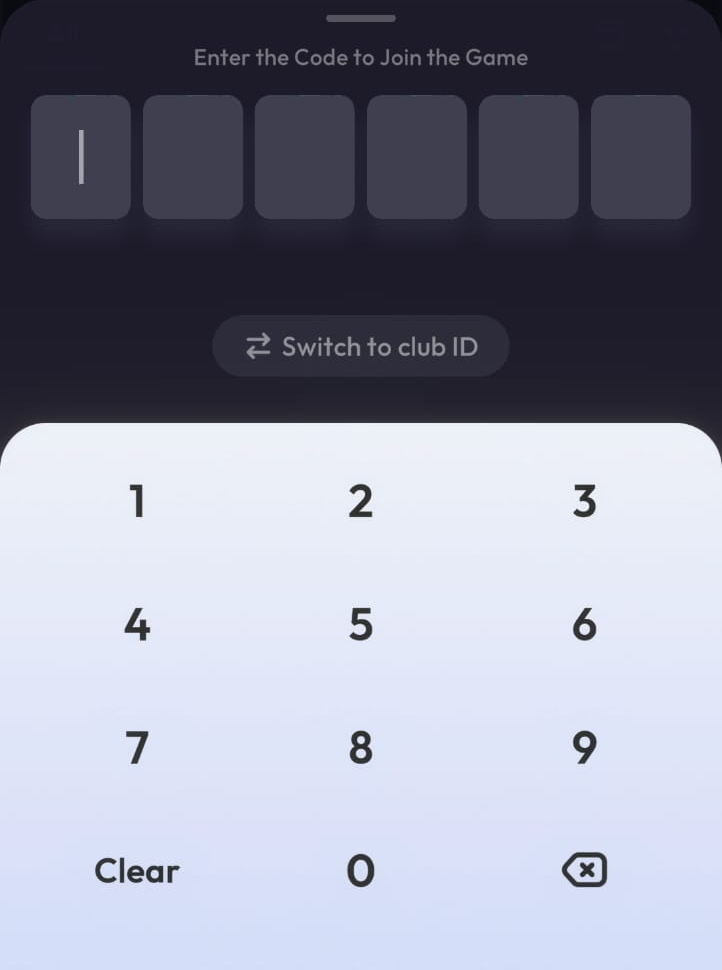
The panel also offers “Switch to club ID.” This text appears as an option separate from the six fields shown in this walkthrough. The screenshot does not show what happens when this option is selected. This guide does not describe the process for joining clubs.
What to Do Next
Ask the friend who created the room for the invitation to that game. To follow the path shown, have the code they sent you ready.
Frequently Asked Questions
Can I join using a link sent by a friend?
Yes. The product instructions describe joining through an invitation link shared after the room is created.
Where should I enter the room code?
In the JOIN section, in the fields on the “Enter the Code to Join the Game” panel.
Is the room code the same as a club ID?
Do not treat them as the same field: the interface shows “Switch to club ID” as an option separate from the code entry described here.

 2 days ago